
Practice tools · iPhone & iPad
Slow a song down
and keep the same key.
Turn the pitch link off and the tempo moves on its own — then loop the bar you keep missing and play it until you do not.
Tempo, pitch and the loop tools are all free. No account, no connection.
- As slow as you likeand still in key
- Same keythe pitch stays where it was
- Loopdrag the handles to a bar
Why slowing music usually wrecks the key
Because the simplest way to slow audio down is to play it back at a lower rate, and that drags every frequency in the recording down with it.
It is the turntable effect. Halve the speed and you halve every frequency, which is exactly one octave down. Take a song to 60% and the pitch falls by about 8.8 semitones — nearly three quarters of an octave. For listening that can sound great, and it is the basis of a whole genre. For practising it is useless: you would be learning the part in the wrong key, with your instrument in tune with nothing.
The alternative is time-stretching. The audio is broken into short overlapping windows and those windows are moved closer together or further apart, so the recording takes longer to play without any frequency changing. The key survives. A guitar solo at 60% is still in the original key, still matches your tuning, and every note is where it was.
Y2K Player does both, and the difference is one button: the chain icon that links pitch to tempo. It is on by default because most people arrive wanting a slowed edit. For practice, the first thing to do is turn it off.
How to set it up
Two minutes, once, and every track keeps its own settings afterwards.
- Get the track inTap Add and pick the audio file, or share it into the app. A whole folder of practice tracks imports in one go, and a video file works too — the app takes the audio out of it.
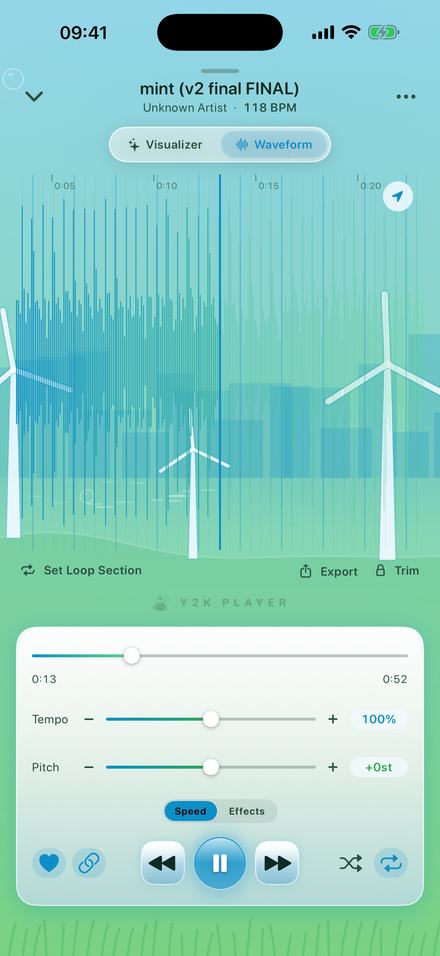
- Turn the pitch link offThe chain button next to the transport controls ties pitch to tempo. Tap it off. This is the step that separates practising from making a slowed edit.
- Drop the tempoDrag Tempo down. The pitch readout stays at +0st the whole way, so the solo stays in the key you have to play it in. The slider reaches 50%; the step buttons go down to 25%.
- Open the waveformSwitch from Visualizer to Waveform at the top of the player. You get the whole track drawn out with a playhead, so you can see the section you care about instead of hunting for it.
- Set the loopTap Set Loop Section. A loop lands around the playhead and both edges become handles you can drag onto the exact bar. It repeats until you turn it off.
- Speed back up as you get itNudge the tempo up 5% at a time. The loop, the trim and the speed are all remembered for that track, so tomorrow’s session starts where this one ended.
The loop is the part that actually teaches you
Slowing a whole song down is a blunt instrument. Slowing four bars down and hearing them forty times is how a passage gets learned.
See the passage, then fence it off
The waveform is the whole track at a glance, so you can find the loud bit, the quiet bit and the gap before the solo without scrubbing blindly. Tapping Set Loop Section drops a loop around wherever the playhead is; both edges are then handles you drag onto the bar you want.
The loop switches on and off without being deleted, which matters more than it sounds: you can play through the whole song to hear the passage in context, then switch the loop back on and go again.
Trim is separate and permanent-feeling but not destructive — it sets where the track starts and ends for playback and for exports, so a long intro can simply stop existing without you editing the file.
Speeds that are actually useful
| Tempo | Good for |
|---|---|
| 50% | Transcribing a fast run note by note. The audio is audibly processed at this depth, but every pitch is still identifiable, which is the job. |
| 60% | Learning a solo or a piece of choreography from scratch. Slow enough to place your hands, fast enough that the phrasing still reads as music. |
| 70–75% | The second pass. You know the notes; now you are trying to play them cleanly. |
| 85–90% | Nearly there. Most people can hear the difference but cannot feel it. |
| 95% | The last step before full speed, and the one most people skip. Do not skip it. |
| 105–110% | Deliberately over-speed. If you can play it at 110%, full speed feels easy. |
The slider covers 50% to 150% and the buttons either side step 5% at a time past that, down to 25%. Fine steps of 1% are available on the slider itself, so a 5% ladder is a choice rather than a limit.
One honest caveat
Time-stretching is arithmetic, not magic. Hold the pitch and pull the tempo a long way down and dense material — a full band, a cymbal wash, heavy reverb — starts to sound smeared, because the algorithm is inventing the space between the windows it moved apart. Solo instruments and sparse recordings survive much deeper stretches than a loud mix does. If 50% sounds gluey on one track and clean on another, that is why.
Every track keeps its own setup
Speed, pitch, loop and trim are stored per song. Open the app tomorrow, tap the piece you are working on, and it is at 70% with the loop still around bar 33. A different piece is at its own settings. Nothing has to be saved, named or reopened, and there are no projects to manage.
None of it touches the audio. The file you imported is copied in once and then only read, so the Original button always has something honest to return to.
And it works with the wifi off
There is no account, no sign-in and no server. A practice room in a basement, a rehearsal studio with no signal, a plane — the app does not notice. Nothing about your library, your playing or your settings is transmitted anywhere, because there is nowhere for it to go. More on how offline works.
Said plainly
- The tempo slider, the pitch slider, the loop and the trim are all free. This whole page describes things the free player does.
- Deep stretches colour the sound. Below about 60% with the pitch held, busy mixes smear. That is inherent to time-stretching, not a setting you can fix.
- Free audio export writes the first 30 seconds. For practising that rarely matters, since you are listening rather than exporting.
- Music inside a streaming subscription cannot be imported. Practice tracks have to be files you own — a purchase, a download, a backing track, a recording of your teacher.
- There is no notation, tab or chord detection. This slows audio down and loops it. It does not tell you what the notes are.
Questions from people practising
The ones that decide whether this is the right tool for you.
Can I slow a song down without changing the pitch?
Yes. Turn the pitch link off — the chain button beside the transport controls — and the tempo slider moves on its own. The pitch readout stays at +0st however far down you go.
How slow can it go?
The slider reaches 50%. The step buttons continue past it in 5% increments down to 25%. Below roughly 60% the processing becomes audible on dense material.
Will it stay in tune with my instrument?
Yes, with the link off. Nothing about the pitch changes, so a track in E stays in E at any speed.
Can I loop a single bar?
Yes. Tap Set Loop Section on the waveform screen and drag the two handles onto the bar. The loop can be switched off and back on without losing where it was.
Does it remember my settings for each song?
Yes — speed, pitch, loop and trim are stored per track. Come back a week later and the piece you were working on is exactly where you left it.
Can I use it for dance choreography?
That is one of the things the loop was built for. Slow the routine to 60%, loop the eight count you keep dropping, and step the tempo back up as it lands.
Does it need an internet connection?
No. No account, no server, no sync. It works in a basement.
Can I import a backing track from a video?
Yes. Import the video file and the app extracts the audio automatically.
Will slowing it down damage the original file?
No. The import is copied into the app and only ever read. Every change is a setting stored beside it, and one tap on Original clears them.
Can I speed a track up past 100% to practise over-tempo?
Yes, to 150% on the slider and 200% with the step buttons — and with the pitch link off it stays in key on the way up as well as on the way down.
Does it show me the notes or the tab?
No. It slows the audio and loops it; reading what is being played is still your job.
Is any of this behind a paywall?
Not the parts on this page. Tempo, pitch, looping and trimming are free. Pro buys the effect rack, the full catalogue of looks, and full-length audio exports.
Where to go next
- Try it in your browserFree in your browser — slow it down right now, no installOpen →
- Change the key insteadMove a song in semitones with the tempo pinned at 100%.Open →
- Slowed and reverbThe opposite intent: let the key fall and add a room.Open →
- Offline playerWhy none of this needs a connection or an account.Open →
- Bass boostFive bands, and where the low end actually lives.Open →
Loop the bar. Play it until it is yours.
The player, the tempo slider and the loop tools are free, and nothing here needs a connection.
Free to download and keep. Pro is a one-time purchase — buy it once and it never renews.