
Audio export · iPhone & iPad
Save the version
you actually made.
Export writes an M4A or a WAV with the tempo, the pitch, the trim and the effects rendered into the audio — on the phone, with nothing uploaded anywhere.
Exported audio is never watermarked. Free stops at 30 seconds; Pro removes the cap.
- M4A · WAVAAC, or 16-bit lossless
- 128 · 256 · 320kbps, your pick on M4A
- 30 secondsfree length — Pro lifts it
Two formats, and the reason there is not a third
The picker offers M4A and WAV. Which one you want is decided entirely by whatever opens the file next.
M4A is the default and the right answer unless something downstream insists otherwise. It holds AAC audio, it carries the cover picture inside it, and every app on the phone that takes an audio file takes it — including the ones whose upload page still says MP3.
Choosing M4A reveals a second row, and it is a real decision rather than a control that does nothing: 128, 256 or 320 kbps. The app opens on 256, which is where most listeners stop hearing the compression on ordinary gear. 320 is worth reaching for when the file will be encoded again by something else afterwards, because each pass compounds the one before it. 128 halves the size when the destination has an upload limit and the material can afford it.
WAV does not compress at all, so it has no bitrate to pick. It is written as 16-bit linear PCM at the sample rate and channel count of the source: a 44.1 kHz stereo song comes back 44.1 kHz and stereo. Nothing is discarded and nothing is estimated. Two costs come with that. The file is far larger, and WAV has no slot for artwork, so the cover picture rides along inside an M4A and not inside a WAV.
Why MP3 is not on the list
This is a platform limit rather than an opinion. iOS plays MP3 files perfectly well and the app imports them, but the system ships no MP3 encoder — being able to read a format is not the same as being able to write it. Supplying one would mean bundling a third-party encoder whose licence terms sit badly inside an App Store app. It costs very little in practice: AAC is the newer codec and at a matched bitrate generally the better-sounding one, and an .m4a is accepted wherever an .mp3 would have been.
How to get the file out
A couple of minutes once the song already sounds the way you want it.
- Bring the song inTap Add and pick the file from Files, or share it into Y2K Player from wherever it already lives. MP3, M4A, AAC, WAV, AIFF, FLAC and CAF all import, and a video file gives up its audio track on the way in.
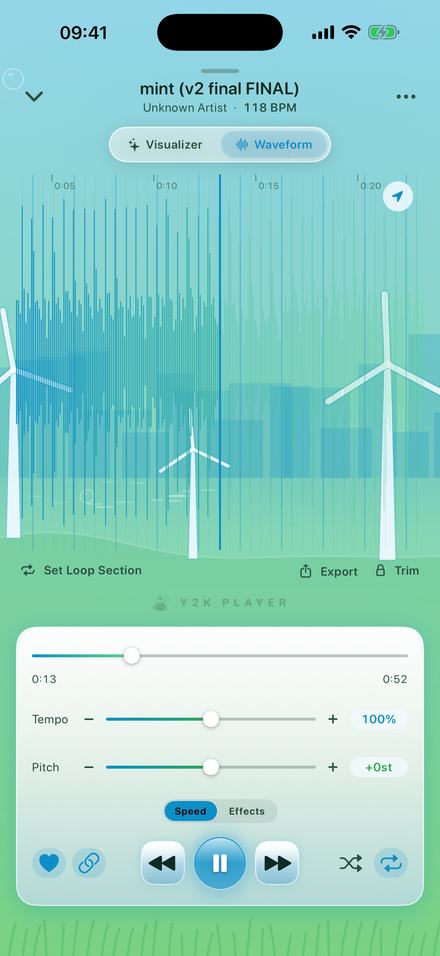
- Set it the way you want itDrag Tempo and Pitch on the player, switch on whatever you are using from the Effects tab, and drag the waveform's trim handles if the file should start or end somewhere else. What you are hearing is what gets written.
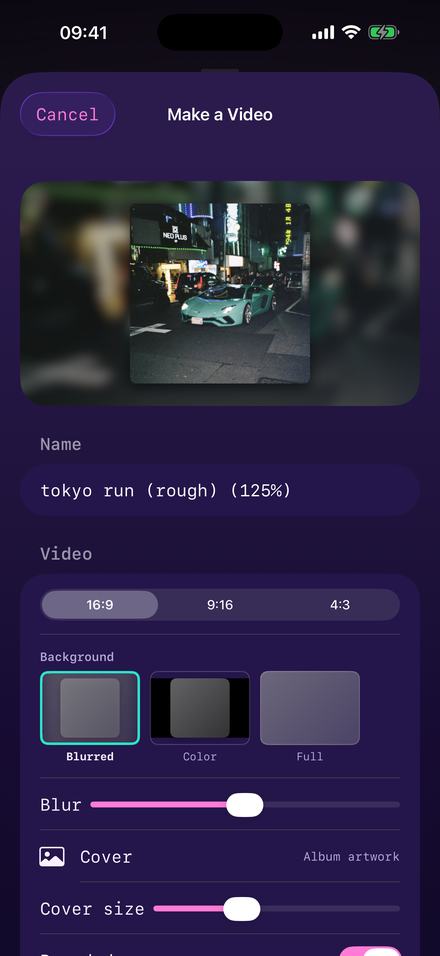
- Open Export AudioTap the … button on the player and choose Export Audio. It is also on the long-press menu of any row in the library. Making a video is a separate screen with its own controls.
- Pick the formatM4A for a file that goes anywhere, at 128, 256 or 320 kbps. WAV when the next tool in the chain would rather have uncompressed audio and the size does not matter.
- Check the nameThe field arrives filled in with the song title and what you changed — the speed as a percentage, the pitch in semitones. Type over it if you want something else.
- Render itTap Export My Song and leave the app in front. A bar counts up with an estimate underneath, and when it finishes the file goes out through the share sheet.
What free gives you, measured exactly
Thirty seconds. It is worth knowing which thirty, because the answer is more specific than it first looks.
A free audio export renders the opening 30 seconds of the song and stops there. Pro lifts that and the render runs to the end of the track, or to wherever the trim ends if you set one.
Those thirty seconds are counted the way you hear them, not the way they sit in the original file. Take a song down to 85% and the export is still thirty seconds long; it simply covers less of the source, because it is playing back slower. Push the tempo up instead and the same thirty seconds cover more of the track. The clock is the fixed part, not the passage.
The window is anchored to the beginning of the song rather than to the trim. Dragging the trim start forward does not carry the free window along with it, so a whole track cannot be collected thirty seconds at a time. If the trim begins past the end of that window, the app opens the Pro explanation instead of starting, rather than handing back an empty file.
The cap in one place
- Free — the song’s first 30 seconds, in either format, at any bitrate, rendered exactly as Pro would render them.
- Pro — the identical export with no length limit on it.
- Neither tier — a tone, a voice tag, or any other mark laid over the audio. Exported audio is never watermarked. The free price is length, and length only.
The file is the thing you were listening to
Not an approximation of it, and not a note of your settings for some other program to apply later.
Everything set on the song is rendered into the audio: the tempo, the pitch, the trim, and whatever is switched on in the effect rack. Open the result anywhere and the change is simply there in the waveform, with no companion file and nothing to reapply.
How that is done matters. The exporter assembles the same chain of audio units in the same order as the engine that has been playing the song, sets every one of them from the same numbers, and pulls the file through it offline rather than in real time. The tempo change is split between a varispeed stage and a time-pitch stage in precisely the ratio the live player uses, so a track at 85% with the pitch linked arrives at the same 2.8 semitones down that you heard while you were deciding. The five EQ bands sit at the same frequencies and keep the same headroom trim on their boosts. The reverb loads the same room.
Two smaller consequences follow. The high-quality stretch setting is honoured on export whatever the battery is doing — an offline render has no battery cost worth optimising, so it ignores Low Power Mode and always takes the better setting. And the effect rack is Pro during playback as well as at export, which means nothing turns up in the file that you were not already hearing, and nothing quietly vanishes from it either.
Where it goes, and what it leaves alone
The render happens on the device. Nothing is uploaded, no account is involved, and airplane mode changes nothing about the outcome — the length of the song is the only thing deciding how long it takes. A progress bar counts up while it works, with a time estimate underneath it. The screen is held awake for the duration and the app has to stay in front, which is the single demand the export makes of you.
When it lands, the file leaves through the standard iOS share sheet: put it in Files, AirDrop it, or hand it directly to an editor, a messaging app, or anything else that accepts audio.
The original is untouched the whole way through. Importing copies the file into the app’s own storage, and from then on it is only ever read; the tempo, the pitch and the trim are numbers kept beside the song rather than a rewrite of it. Every export writes a new file and never overwrites the source, so if one comes out wrong, moving a slider and rendering again costs nothing but the wait.
The name is written before you type
The name field opens already filled in with the song title and a short account of what you did to it — the speed as a percentage, the pitch in semitones, each appearing only when it is not at rest. Export a track at 125% and the field reads the title followed by (125%). You can type over it, and most people do not, which is the difference between a folder you can still read next month and a row of identically named files.
Questions about the file itself
The ones that decide whether the export is usable where you are taking it.
What audio formats can I export?
M4A and WAV. M4A holds AAC and is the one to take by default; WAV is 16-bit uncompressed audio at the source's own sample rate and channel count.
Why can't I export an MP3?
iOS ships no MP3 encoder. The system can read the format but not write it, and adding one would mean bundling a third-party encoder with awkward licence terms. An .m4a opens wherever an .mp3 would have, so in practice nothing is lost.
How long is a free audio export?
Thirty seconds, taken from the beginning of the song. They are thirty seconds as you hear them, so a slowed export still runs for thirty seconds and simply covers less of the original. Pro removes the limit and the render goes to the end of the track.
Is there a watermark on the audio?
No, on either tier. A mark over somebody's music would make the file useless, so the free tier costs you length instead.
Which bitrate should I choose?
256 kbps unless you have a reason. Go to 320 if the file will be re-encoded again afterwards, and drop to 128 if you are up against an upload limit.
Does exporting change my original file?
No. The file you imported was copied into the app's storage and is only ever read after that. Speed, pitch and trim are stored as numbers beside the song, and every export writes a new file.
Does it need an internet connection?
No. The render runs on the device, so nothing is uploaded and nothing is queued. Airplane mode makes no difference to the result or the speed of it.
Where to go next
- Slowed and reverbThe sound most of these exports are made of, and how the room is set.Open →
- Make a video insteadThe same remix under a picture, full length even without Pro.Open →
- Audios for editsCutting to the hook before you render anything.Open →
- What Pro addsThe length cap, the effect rack, and the rest of what it lifts.Open →
- Nightcore.app alternativeFree · export without a login · no uploadOpen →
- Loop a Section of a Song With No Click oLoops · iPhone & iPadOpen →
Export one song and look at the file.
The whole export path is in the free app; the length cap is the one thing Pro lifts. Free to use. Pro is one payment — forever.
Free to download and keep. Pro is a one-time purchase — buy it once and it never renews.