
iPad layout · landscape & full screen
The iPad gets the whole screen.
Not a phone layout, stretched.
Turn it sideways and the scene takes the glass while every control gathers into one column beside it — on the audio files already on your iPad.
Free to use. Pro is one payment — forever.
- 440 ptthe iPad control column
- scenes on a ProMotion panel
- the tempo range
What is actually different on an iPad
Not the app. The geometry. One universal build runs on both, and it decides what to draw from the shape of the window rather than the name of the device.
Layout is what changes, and it changes on three questions the app puts to the system. Is this a regular-width screen, is it a regular-height screen, and is the container it has been handed wider than it is tall. An iPad answers regular to the first two in every orientation, so size classes alone would never notice a rotation — a geometry probe behind the root stack watches the container's aspect instead. That is why turning the iPad on its side rearranges the player.
On a regular-width screen the home feed stops stretching. The reading column caps at 820 points and centres, while the header, the dock and the background still span the whole glass. Capping the app rather than the column would leave bare margins down both sides — letterboxing, on a dark theme. Covers get their own ceiling for the same reason: the grid stays three across, and the artwork tops out larger than a phone's.
Rotation is unrestricted here, in all four orientations including upside down. On an iPhone only the player rotates, because a phone on its side has no height left to give a browsing feed.
Landscape is two regions, not a portrait screen turned sideways
The scene takes the left of the glass. Everything you operate gathers into one column on the right — and that column has room for rows a phone cannot fit.
Held sideways, the player splits. The visualizer, or the waveform if that is the page you are on, bleeds into the leading, top and bottom edges of the screen. The control slab sits flush against the top, right and bottom, translucent enough that the theme's living background keeps moving behind it. On an iPad the slab is 440 points wide; on a phone in landscape it is 400.
Those extra points buy away a page. A phone in landscape has roughly four hundred points of height, so the controls split into a Speed page and an Effects page with a toggle between them. An iPad has the height for both at once: tempo and pitch stay visible at the top of the column, the rack scrolls underneath them in the same run, and the toggle disappears with the need for it.
Under the transport sit two rows that exist only here. Four tiles — Equalizer, Visuals, Add to Playlist, Sleep Timer — go straight to the thing they name; the Equalizer tile opens the effects already scrolled to the EQ. Below them is the system volume with a live percentage beside it and the AirPlay output button, which is the row you want when the iPad is feeding a speaker across the room.
How it goes, start to finish
A few minutes, most of it spent deciding how slow is slow enough.
- Add the filesTap Add and pick audio or video out of Files — several at once, or whole folders. Anything shared into the app lands in the same library, and local DRM-free tracks can come across from a synced music library.
- Turn the iPad sidewaysOpen a song and rotate. The scene moves to the left of the glass and every control gathers into one column on the right. Every other screen rotates too; on an iPad nothing is locked upright.
- Set the speed and the keyDrag Tempo. With the link on, the key rides up or down with the speed the way a record does. Switch the link off and the song changes speed while staying in its original key.
- Build the soundTempo, pitch and the effect rack are one column here, so the sliders stay put while the rack scrolls under them. The Equalizer tile jumps straight to the EQ.
- Give a scene the screenThe Visuals tile opens the catalog, three across by default and two if you prefer bigger tiles. Then tap the scene, or the button in its corner, and everything else leaves.
- Keep it or export itThe settings stay attached to that song. Export writes an M4A or a WAV, or renders a full-length MP4 with the artwork on it.
Full screen means nothing but the scene
The chrome does not shrink. It leaves.
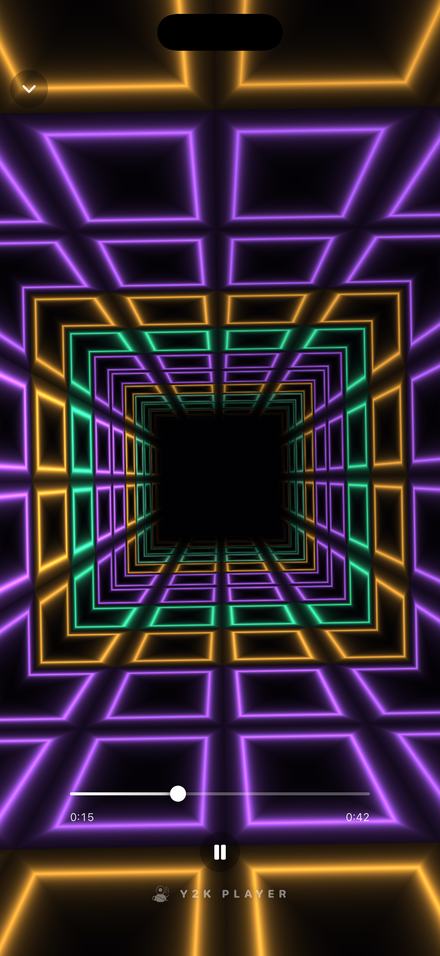
Tap the scene, or the small button in its corner, and the panel, the tiles, the title and the status bar all go. What remains is a scrubber carrying its two timestamps, one play and pause button, and the app's mark resting at the bottom. A chevron in the top-left brings the rest back.
A large panel of glass is where the scenes earn themselves. Hyperdrive is a neon frame tunnel whose walls are the spectrum bands and whose throttle is the kick drum. It belongs to Pro; Dreamscape, Spectra, Daybreak and Still are free, and Still is the one for when you want the room lit rather than entertained.
What a big canvas costs, honestly
These are fragment shaders, so the cost is paid per pixel, and an iPad in landscape can be several times the pixel area of a large phone. The render target therefore shrinks as the canvas grows: the app measures the area against a big-phone reference, renders proportionally leaner, never below 55% of full scale, and upsamples. On glow and gradient work that is invisible. A missed frame is not.
Frame rate goes the other way. A scene targets the display's own maximum, which on a ProMotion iPad is 120. Looks that cannot finish a frame in that budget are held to 60 instead — measured with a timing harness, not guessed at, because an even 60 reads smoother than a torn 120. Low Power Mode takes everything to 30, and Settings has a battery-saver switch that does the same on purpose.
The editing half is where the extra width pays
The waveform is the player's other page, and it is a chart rather than an ornament.
It draws from a peak pyramid computed once at import, over a beat grid and a time ruler, picking the finest level whose buckets still land a point apart at this zoom. Pinch zooms, drag pans, a tap seeks, and the playhead follows itself while the song plays unless you take hold of it.
Width is the resource that view spends. The chart lays itself out in points per second, so a whole song across a landscape iPad gets more of them than the same song across a phone. Height is capped at 480 points and centred, because a waveform stretched to the full height of a large screen stops reading as a wave and starts reading as a wall. Trim handles stay locked until you unlock them, and the loop button drops a section around the playhead, roughly eight seconds, clamped to the trimmed range.
The rack beside it is where the sound is made: reverb with six spaces from Air up to Cathedral, a five-band EQ, a widener that leaves the bass centred, saturation, a low-quality degrade, and a chop locked to the detected beat. None of it touches your file. An import is copied once and then only read; tempo, key, trim and every knob are numbers kept beside it. Each song remembers its own, and one button returns it to the way it was recorded.
Worth knowing before you install it
- It plays files you already own. Audio and video out of Files, whole folders at a time, anything shared into the app, and local DRM-free tracks from a synced music library. Protected streaming copies cannot be read by any third-party app and are skipped with a note.
- Your library does not travel between devices. iCloud carries stats, streaks, hearts and a few preferences; the audio stays where it was imported.
- The purchase does travel. Pro is tied to your Apple ID, so unlocking it on the iPhone unlocks it on the iPad. Free to use. Pro is one payment — forever.
- Speed and pitch are free; the effect rack is Pro. A preset such as Slowed + Reverb sets both halves, so the free tier hears its tempo and key without its rack.
- Free audio export writes the song's first 30 seconds and Pro writes all of it. Video export is full length on both tiers.
- Escape closes the player when a keyboard is attached.
Questions about the iPad version
The ones worth answering before anything gets installed.
Is there a separate Y2K Player for iPad?
No. It is one universal app built for both device families, and one purchase covers both. What differs is the layout: the app reads the size classes and the shape of the container it has been handed, so the same build arranges itself differently on a large screen than on a phone.
Do the visualizers go full screen on an iPad?
Yes, and that is the mode they were made for. Tapping the scene, or the button in its corner, clears the panel, the tiles, the title and the status bar. A scrubber, a play button and the app mark are all that is left, and a chevron in the top-left corner puts everything back.
Can I use it as an audio editor on an iPad?
Within the limits of what it is. There is a zoomable waveform over a beat grid, trim handles, a loop section, a five-band EQ and a rack of effects, and it writes M4A, WAV or a full-length MP4. It is not a multitrack editor: one song at a time, and nothing is written back over the file you imported.
Will my library show up on both my iPhone and my iPad?
No. The audio stays on the device it was imported to. iCloud carries the small things — listening stats, streaks, hearts and a handful of preferences — but the files themselves are not mirrored, and no server is holding them. Pro is the part that follows you, because it is attached to your Apple ID.
Can it pull songs in from a streaming service?
It cannot, and neither can any other third-party app: those copies are protected and unreadable from outside the service that issued them. What it plays is files you own — anything you can reach in Files, anything shared into the app, and local DRM-free tracks from a synced music library.
Will a visualizer keep up on a big screen?
The honest answer is arithmetic rather than a promise. The scenes are fragment shaders, so the bill is per pixel. The render target shrinks as the canvas grows, proportionally and floored at 55% of full scale, and the scene targets the display's own refresh rate — holding the heavier looks to 60 where 120 would tear. Low Power Mode and the battery-saver setting both take it down to 30.
Does any of it need an internet connection?
No. Import, playback, the effects and the export all happen on the device, and there is no account to make. There is more about that on the offline page.
Where to go next
- VisualizersEvery scene at full size, and what each one is listening to.Open →
- Slow a song downThe other end of the slider, and where to stop turning it.Open →
- ThemesThe chrome the landscape panel is wearing while you work.Open →
- What Pro addsThe effect rack, the export cap and the locked scenes, in one list.Open →
- Music Player for iPhoneLocal library · iPhone & iPadOpen →
Give it the whole screen.
It runs on the iPad you already have, on the files you already own, and it fills the glass instead of borrowing a phone's layout.
Free to download and keep. Pro is a one-time purchase — buy it once and it never renews.