
Local library · iPhone & iPad
A music player for the songs
already on your phone.
Import files, or a whole folder at once. Playlists, albums and favourites that build themselves. No account, and nothing that needs a connection.
Free to use. Pro is one payment — forever.
- 8 audio · 3 videofile types a folder import walks in
- 15 minwhen a file starts saving your place
- 0accounts, ads or sign-ins
A player for music that is already yours
Nothing to search for and nothing to sign into. You hand it audio files that are on the phone, and it turns them into something worth browsing.
The library starts empty, which is the honest starting state for a player rather than a shop. Tap the plus at the end of the tab bar, give it files, and everything after that is the app reading what you gave it. Embedded tags become the title, the artist and the album. Cover art buried in the file is pulled out and cached. A waveform is drawn in advance so scrubbing is instant later, and the tempo is measured along with the position of the first downbeat, so a BPM sits under the title from the moment a song arrives.
The file you picked is copied into the app’s own storage and from then on only read. Renaming a song renames it here and nowhere else; the file in Files keeps the name it had. Nothing in the app rewrites audio on disk, which is why the speed and pitch controls can be as reckless as you like.
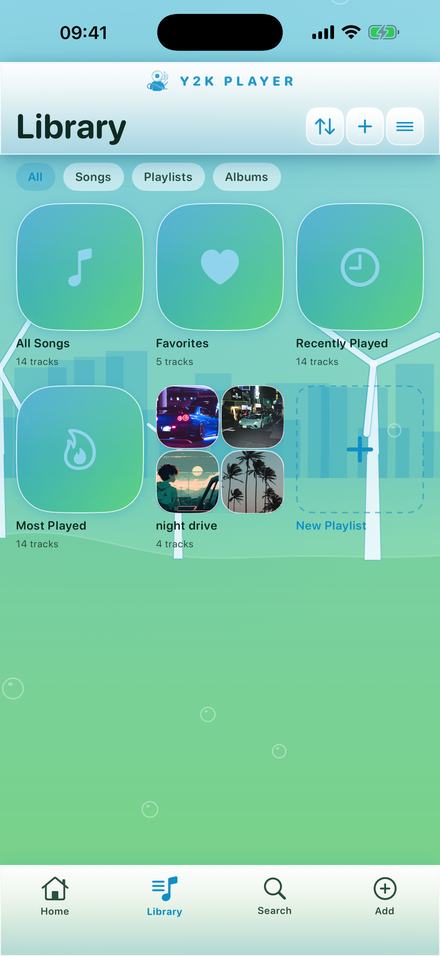
What that buys is a library that behaves like one. All Songs, Favorites, Recently Played and Most Played are assembled on the device from what is actually there and what you have actually played. Albums group themselves from the album tag. Four chips across the top — All, Songs, Playlists, Albums — decide how much of it you are looking at, and the sort you choose, whether Recently Added, Recently Played or Title, is still the sort you get tomorrow.
Setting it up
A few minutes, and most of that is deciding which folder to hand over first.
- Open AddThe plus at the end of the tab bar opens a sheet with the four ways in: files, a whole folder, the audio out of a video, or music already synced here.
- Point it at your musicPick files one at a time, or pick the folder they live in and let the app go through it. Two hundred files is the same number of taps as two.
- Let it read themTitles, artists and albums come out of the tags. Cover art is extracted, a waveform is drawn ahead of time, and the tempo and first downbeat are measured.
- Group itHeart what you want near the top, make a playlist, and let Albums, Recently Played and Most Played build themselves out of what you do.
- Play it anywhereLock screen controls and background playback, none of it needing a connection. Every song holds on to its own tempo, pitch and effects for next time.
Everything it will take
Five routes in, and one of them moves a whole folder in a single action.
- Files, one or a hundred. The picker opens onto the device and iCloud Drive, and multiple selection works.
- A folder. Choose the folder itself and the app walks it, subfolders included, collecting every mp3, m4a, aac, wav, aif, aiff, flac and caf inside — plus mp4, mov and m4v, for their sound.
- The share sheet. Anything another app can hand over as an audio file arrives through Open With, without the picker involved at all.
- A video. Import a clip and its audio track is exported out of it automatically. What lands in the library is a track like any other.
- Music already synced to the phone. The system picker shows what is physically on the device and imports the items carrying no DRM — things bought outright, or synced across as files. Protected downloads are skipped, and the app tells you how many, since those are locked to the app that fetched them.
That last line is worth being blunt about: a song that exists only inside a streaming subscription cannot be imported here, or into any other app. This plays files you own outright, and it never pretends to be a way into a catalogue.
Playlists that do not touch your songs
A playlist here is a list of songs, not a second copy of them.
The same track can sit in as many playlists as you want, and deleting a playlist leaves every song in the library where it was — the confirmation says so out loud, because that is what people hesitate over.
Give a playlist a picture and it keeps it. Give it nothing and it builds its own: a two-by-two collage of the first four songs in it that came with cover art, which is why a fresh playlist looks finished rather than blank. It can carry a line of description, and it can be hearted so it sits on the home screen beside your favourite songs.
The name field arrives filled in, so making one is a single tap and typing is optional. Hold a playlist and you can send it out as a ZIP of the real audio files, named after the songs rather than after the app.
Two playlists come with the free app. Pro takes the limit off.
The parts that are just a music player
Shuffle deals the whole library into an order and works through it, so nothing repeats until everything has had a turn. Repeat covers off, one and all. Both survive a relaunch, which sounds like nothing until the third time an app forgets. Any song can be sent to the front of the queue or added to the end.
On the lock screen you get the title, the artist, the cover and a scrubber, and the time it shows is the time you will really hear: a four-minute song playing at 50% reads as eight minutes, because that is how long it now takes. Playback continues with the screen off, and unplugging headphones pauses instead of broadcasting your music to a room.
Anything longer than fifteen minutes — a mix, a set, a rehearsal recording — remembers where you stopped and offers to carry on. Every song keeps its own notes, and its own tempo, pitch and effects, so a slowed track and a sped up one sit side by side without either forgetting what it is. The sleep timer, part of Pro, ends on a countdown or lets the current song finish. Siri will start your last song, or shuffle everything.
Worth knowing before you commit a library to it
- There is no account. You will not find a sign-in screen, because there is nothing to sign into, no password to lose and nothing to be locked out of.
- No audio leaves the phone. Hearts, listening counters and your chosen look travel through your own iCloud, so a replacement device is not a blank slate. Song files are never mirrored anywhere.
- A real library takes real space. The app ends up about as large as the music inside it. Free up space in Settings clears only the waveforms and extracted covers, which it rebuilds by itself.
- It runs with the connection off. Importing, organising, playing and exporting all happen on the device. The only thing that needs the internet is the App Store.
- There are no ads. Not a banner, not a video, not a sponsored row in your own library. Free to use. Pro is one payment — forever.
Questions about keeping your own library
The ones that decide whether this is the right kind of player for you.
Does it play songs from a streaming service?
No, and neither can any other third-party app. A download inside a streaming subscription is a locked file that only the app it came from can open. Y2K Player plays audio you own outright: purchases, your own rips and recordings, files people send you, and DRM-free songs already sitting on the phone.
What file types can I import?
Picking files gives you anything an iPhone can decode as audio. A folder import collects mp3, m4a, aac, wav, aif, aiff, flac and caf, plus mp4, mov and m4v for the sound inside them. ALAC arrives inside an m4a here the same as it does everywhere else.
Can I import a whole folder at once?
Yes. Choose the folder itself instead of the files inside it, and everything recognisable in it and its subfolders comes in together. It is the quickest way to move a collection that already lives in Files or iCloud Drive.
How many playlists can I make?
Two on the free app, and as many as you like with Pro. Playlists never duplicate audio, so a song sitting in six of them is still one file on disk.
Does importing move or change my original files?
No. The import is a copy into the app’s own storage, and after that the app only reads it. Renaming a song, changing its cover or deleting it inside the app never reaches the file you imported from.
Do I need an account, or a connection?
Neither. There is nowhere in the app to sign in, and playing, importing, organising and exporting all run on the device. Buying or restoring Pro goes through the App Store, which is the one moment anything needs the internet.
Does my library sync to my other devices?
The audio does not — there is no account to sync it through, so two devices hold two libraries. Hearts, listening counters and the theme and visualizer you picked travel through your own iCloud, so a new phone does not start from nothing.
Where to go next
- Works offlineWhat actually happens when the connection goes away.Open →
- Slow a song downThe tempo slider, a loop, and a passage you can drill.Open →
- ThemesThe whole app restyled, tab bar and all.Open →
- VisualizersFull-screen scenes drawn from whatever is playing.Open →
- Music Player and Audio Editor for iPad &iPad layout · landscape & full screenOpen →
- Organise Your Own Music on iPhone WithouLibrary · iPhone & iPadOpen →
Hand it one folder.
Everything after that is a library built out of files you already own. Free to use. Pro is one payment — forever.
Free to download and keep. Pro is a one-time purchase — buy it once and it never renews.