
Library · iPhone & iPad
How to organise your own music
without a computer
Getting the files onto the phone, giving them names, grouping them, and deciding what plays next — the whole job, done in your hand.
Free to use. Pro is one payment — forever.
- Whole folderswalked recursively, sub-folders included
- MP3 · M4A · WAV · FLACAAC, AIFF and CAF too
- Nothing uploadedthe library is a folder inside the app
The job is a collection, not a player
A lot of people own audio files again. Almost nobody still owns the desktop program that used to look after them.
The files arrive from everywhere, one at a time. A purchase from Bandcamp. A folder of CD rips someone put on a drive years ago. A DJ set sent over a messaging app. The audio inside a video clip. None of that is a library yet — it is a pile.
Turning a pile into a library used to be a desktop job: a program with a folder tree, a tag editor and a cable. That has quietly stopped being available to most people: the computer is a work laptop, or there is no computer at all.
So the whole thing has to happen on the phone, and it is five jobs wearing one name:
- Getting the files in — in batches, not one at a time.
- Making them readable — because half of what you own is named after the software that made it.
- Grouping them — playlists you make, and albums that should make themselves.
- Deciding play order — shuffle, repeat, and what is coming after this.
- Not losing them — which is really a question about where the files sit.
The five things that go wrong
Most of these are decided by the tool you pick, not by you.
Protected downloads cannot be moved
This is the one that catches everybody. A song downloaded inside a streaming subscription is encrypted and tied to the app that downloaded it. No third-party player can read it — not this one, not any of them, on any phone. That is not a missing feature, it is the point of the format.
What moves is what you own outright: purchased downloads, music synced to the phone as files, your own rips and recordings. If you are choosing where to buy, choose somewhere that hands you a file.
Importing one file at a time
A hundred-track folder imported individually is an evening. Ask of any player whether it takes a folder, and whether it looks inside the sub-folders while it is there.
The names are not names
Real collections are full of track01_final(128kbps) and audio_2019_07_14. Embedded tags fix most of it, but only if the app reads them, and there has to be somewhere to type over the rest by hand.
A pointer is not a copy
Some players keep a reference to the file where it sits in Files or iCloud Drive. Move it, rename it, or let the system offload it, and the entry goes dead. A copy inside the app costs storage and nothing else.
Order that forgets
Shuffle on, repeat all, close the app, and both are off again. Small, but it is the difference between a library and a folder you keep re-configuring.
From a pile of files to a library
This is the method in Y2K Player, a player for audio you already own. Roughly ten minutes for a folder of a few hundred tracks.
- Get the files where Files can see themiCloud Drive, a folder someone AirDropped, a browser download, a drive plugged into the port. They do not need to be tidy and they do not need to be in one place.
- Import the folder, not the filesTap Add, choose Import Songs, and pick the folder itself rather than its contents. Everything audio inside it, sub-folders included, comes in as one batch.
- Let the tags do the namingTitles, artists and album names are read out of the files as they land. Fix the ones that arrived wrong with Rename Song and Edit Artist in a song's menu, and give the artless ones a cover from your photos or a fresh tint.
- Make the two or three playlists you will actually useAdd, then New Playlist. Name it and tick songs. The picker lists newest first, because whatever you just imported is what you are reaching for.
- Set shuffle and repeat onceBoth are remembered across relaunches. Shuffle deals a whole cycle rather than a die roll per skip, so the Up Next list is telling the truth.
- Get a copy back off the phonePress and hold a playlist and choose Share as ZIP. Ordinary audio files, named after their titles. Worth doing once, so the collection is never only in one place.
What happens when a folder goes in
Pick a folder in the Files picker and it is walked, sub-folders included, and every audio and video file inside is taken: MP3, M4A, AAC, WAV, AIF, AIFF, FLAC, CAF, and MP4, MOV or M4V for the sound inside them. There is no cap on how many songs a library holds.
Per file, on the way in
- The file is copied into the app's own Music folder. Your original is never moved or modified.
- Title, artist and album are read from the embedded metadata, with the filename as the fallback.
- Duration is measured from the audio itself rather than trusted from a tag.
- Cover art is pulled out of the file when it has any; songs without art get a stable pastel tile you can re-roll.
- The waveform is pre-computed in the background, so scrubbing never decodes audio while your thumb is down.
- Tempo is analysed on import, not on first play, so the BPM is filled in by the time you look at it.
- A long import writes its progress every 25 files, so an interruption halfway costs you nothing.
Three other doors
Share, or "Open with". The app registers as a handler for audio files, so anything that can share — mail, a messaging app, a browser download, a file in iCloud Drive — can send a track straight into the library without opening the app first.
From Music Library. The system picker over what is synced or purchased on this phone. Cloud items are hidden because they are not really here; protected items are skipped, counted and reported with a note saying how many and why, rather than failing quietly.
Import Video Sound. Pick a clip and its audio is extracted into an ordinary file — the usual route for something you filmed, or a set that only exists as video.
Playlists, albums, and the lists you never make
A playlist here is a name and a list of songs; nothing is copied into it. Delete the playlist and every song stays in the library. Delete a song and it leaves every playlist it was in, along with its file, waveform and artwork. Songs sit in the order you added them.
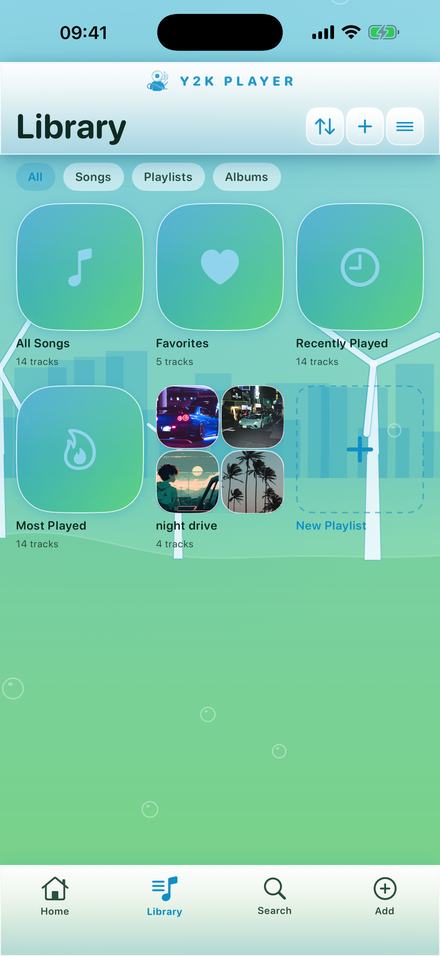
Each one can carry a cover — a photo of your own, or an automatic collage of up to four of its covers, with the songs that have artwork placed first so the tile is never a grid of blanks. It can carry a one-line description and a heart that pins it to the home shelf. Hold one and Share as ZIP hands you ordinary audio files named after their titles.
Albums assemble themselves. Songs are grouped by the album tag in their metadata, and an album appears once at least two of them share a name. It browses and plays exactly like a playlist, and you did nothing to make it.
So do the three lists most people live in: Favorites, from a heart on any song, plus Recently Played and Most Played, each holding twenty-five. Sorting is Recently Added, Recently Played or Title, and the choice is remembered. Search matches titles, artists, and playlist and album names, ignoring case and accents.
Two playlists are free; everything else on this page is free. Unlimited playlists come with Pro.
What plays next
Whatever you opened is the queue: the whole library, one playlist, one album, or one of the automatic lists. Shuffle deals a full cycle up front instead of rolling a die at every skip, which is why Up Next can honestly show what is coming and why nothing repeats until the cycle ends. Songs imported later are shuffled onto the end.
Repeat is off, one, or all. Shuffle and repeat both survive being closed and reopened. Play Next and Add to Queue push songs in front of the pool, and that short list drags into a different order.
Files of fifteen minutes or longer remember where you stopped — mixes, sets, long recordings. Anything shorter starts from the beginning, because a three-minute song that resumes at 2:14 feels broken.
What it will not do
There is no account and no server. The library is one settings file plus a folder of your audio inside the app, written atomically so an interrupted save cannot corrupt it, and carried in the phone's own backup.
That has a consequence worth stating plainly: playlists and files do not sync between devices. Hearts and preferences ride iCloud's key-value store; the audio does not. A second device is a second import.
Songs inside a playlist cannot be dragged into a new order — they hold the order you added them in. And nothing here can import from a streaming subscription, for the reason at the top of this page.
Questions people actually ask
The ones that decide whether this approach works for your collection at all.
Can I import songs from a streaming subscription?
Can I import a whole folder at once?
Does importing move or change my original files?
How many songs and playlists can I have?
Do my playlists sync to my other iPhone or iPad?
Can I get my music back out again?
Does any of this need an internet connection?
Where to go next
- Everything plays offlineWhat a library of files does on a plane, and the one thing that still needs a connection.Open →
- Slow a song downThe tempo control, and what happens to the pitch when you move it.Open →
- Audio for editsCutting a section out of something in your library and getting it into a video.Open →
- What Pro addsUnlimited playlists, full-length exports, the effects rack and every theme.Open →
- Keep Music Playing With the Screen Off oBackground playback · iPhone & iPadOpen →
- How to Put Your Own Music on an iPhoneGetting files onto the phone · iPhone & iPadOpen →
Start with the messiest folder you own
It is the fastest way to find out whether this is the shape your collection wanted.
Free to download and keep. Pro is a one-time purchase — buy it once and it never renews.