
Getting files onto the phone · iPhone & iPad
Put your own music
on an iPhone.
No computer, no cable, no desktop music manager. The file goes on from the phone itself. The only thing you need is a player that will open it.
Free to use. Pro is one payment — forever.
- MP3 · M4A · WAV · FLACand more
- Whole foldersone pick, walked recursively
- Nothing uploadedthe copy is made on the phone
Two different things get called “putting music on your phone”
One is subscribing to a catalogue and marking songs for offline listening. Those songs are not on your phone in any sense you control. They are an encrypted cache belonging to the app that fetched them, and they stop working when the subscription does.
The other is the older idea, and it is the one this page is about. You have audio files — downloads you bought, your own recordings, a mix somebody sent you, rips of discs you still own — and you want them sitting on the phone, playable, yours. That used to mean a cable and a desktop program that synced a library in one direction. It has not meant that for years. Every part of it can happen on the phone itself.
What makes it feel harder than it is: iOS has no general inbox for audio. A file can arrive a dozen ways and the phone stores it happily, but the built-in music app plays your purchased and synced library rather than whatever is sitting in a folder. So the file lands and nothing obvious opens it. The missing piece is almost never the file. It is a player that accepts one.
Every route that actually works from the phone alone
Six of them. You probably already have three.
- The Files app. Whatever Files can see, a file picker can see: iCloud Drive, On My iPhone, and any cloud storage app that installs itself as a Files provider. A folder full of albums is reachable without touching a computer.
- A download from the browser. Saved files land in Files, usually in Downloads, and from there they behave like any other file.
- AirDrop. A track sent from a nearby Mac or phone arrives with a list of apps that can open it. Any app that has declared itself a handler for audio is on that list.
- The share sheet, from anywhere. A mail attachment, a file in a chat, an export from a recording app, a bounce out of a music program. If it can be shared, it can be handed to a player directly.
- The library already on the phone. Music you bought as downloads, or synced across at some point in the past, is still on the device and can be pulled into another app — as long as it is not protected.
- Audio inside a video. The route people forget, and it covers a surprising amount: a clip a friend sent, a live take filmed on a phone, a screen recording of a mix that exists nowhere else.
None of them needs a computer or an account. They differ only in where the file is sitting before you start.
The one thing that will not move, whatever you try
Songs downloaded inside a streaming subscription cannot be imported into another app. Not by this app, not by any of them. Those files are encrypted and tied to the app that downloaded them, which is the deal that made the catalogue available in the first place. Anything promising otherwise is either recording the output as it plays or lying to you.
The same applies to older protected purchases sitting in a synced library. When you pick songs out of the on-device library, the protected ones are skipped and counted, and you are told how many. Songs synced as plain files, and downloads you bought outright, come across without complaint.
Knowing where that line sits saves an afternoon: “it did not work” usually means the file was never movable, not that you did the steps wrong.
Doing it, start to finish
A couple of minutes, and most of that is finding the file.
- Get the file onto the phoneDownload it, AirDrop it, save the attachment, or leave it where it already sits in iCloud Drive. Any of those is fine. The file only has to be reachable from the Files app or from a share sheet.
- Open the player's Add buttonIn Y2K Player it is the last slot in the tab bar. It opens a sheet with the routes on it: Import Songs, From Music Library, Import Video Sound.
- Pick the files — or the folderThe picker takes more than one file at a time, and it will also take a folder. A picked folder is walked recursively for audio, so a downloads folder of a hundred tracks arrives in one action instead of a hundred.
- Let it copyEach file is copied into the app's own storage. The original is not moved, renamed or altered, so if you ever delete the app the copy goes with it and your file is still where you left it.
- Check what came inTitle, artist and album are read from the file's own tags, embedded cover art is pulled out, the length is measured from the audio itself, and the tempo is analysed on arrival so the BPM is filled in before you go looking for it.
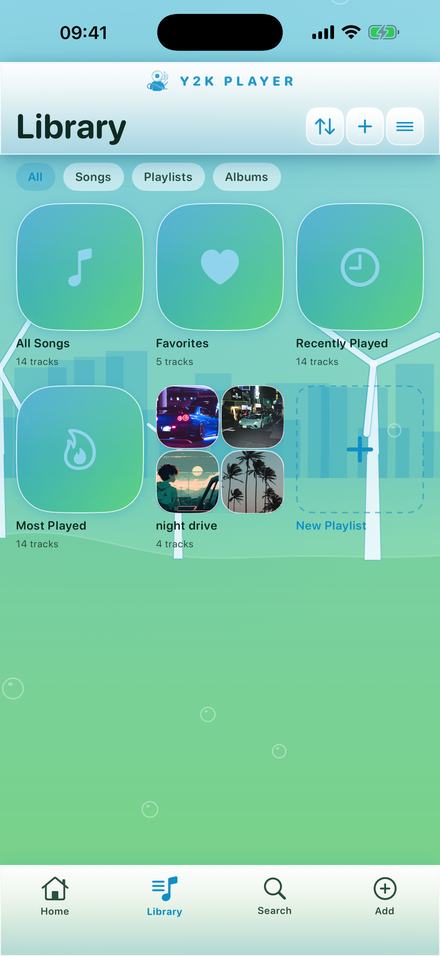
- Sort it outPlaylists, favourites, search, Recently Played and Most Played are built on the device from what is actually there. All of it works with the wifi off.
- Import Songs
Audio files and whole folders from Files. - From Music Library
Songs synced or purchased on this iPhone. - Import Video Sound
Pull the audio out of any clip. - New Playlist
A fresh collection for a mood.
Three doors, and they are the same three however the file arrived
The parts worth knowing before you start
- Importing copies, it never moves. Each file is duplicated into the app’s own storage. Your original is not renamed, rewritten or deleted, and it stays exactly where it was.
- Nothing is edited in place. The app does not open your files where they live, and it does not appear as a folder in Files. Everything it plays is its own copy.
- A folder counts as one pick. Choose a directory and it is walked recursively for audio, so a hundred tracks arrive in one action.
- Multiple selection is on. You do not have to go back for the second file.
- Formats: MP3, M4A, AAC, WAV, AIFF, FLAC and more — plus MP4, MOV and M4V when what you want is the audio inside a video.
- Importing is free and uncapped. There is no limit on how many songs you keep. The free tier caps playlists at two; the songs themselves are not counted.
- Nothing is uploaded. There is no account and no server. The copy is made on the phone, by the phone.
What happens to a file after it lands
A file in a folder is not a library. Turning one into the other is what separates a player from a file browser, and it happens in the seconds after the copy finishes.
The title, artist and album are read out of the file’s own tags, so a well-tagged download arrives correctly labelled instead of as a filename. When the tags are missing the filename is used, which is the honest fallback. Embedded cover art is pulled out and cached. The exact length is measured from the audio itself rather than trusted from a header. A waveform is precomputed in the background so scrubbing is instant later. And the tempo is analysed on arrival rather than the first time you press play, so the BPM is already printed under the title when you go looking for it.
After that it is an ordinary song. Playlists, favourites, search, Recently Played and Most Played are all computed on the device from what is actually there. If the file came out of a video, nothing downstream knows or cares.
Where video fits
Share or import a clip and its audio is extracted into an ordinary M4A, added as a track, and the video is left untouched. MP4, MOV and M4V are the everyday cases; the app will try any video it is handed and take the sound if there is a track it can read. It is the fastest answer to “the only copy I have is a video”.
And once they are on the phone
The reason to import into this player rather than any other is what the files can then do.
- Play it with the wifi offNo account, no ads, nothing to sign in toOpen →
- Slow a song downTo half speed, in key or not — your callOpen →
- Speed one up125% is where most sped up edits sitOpen →
- Move the keyWithout touching the tempoOpen →
- Put a room around itThe slowed and reverb sound, as a presetOpen →
- Make audio for editsTrim it, tune it, export the fileOpen →
The player
Y2K Player is a music player for files you already own. It takes them from Files, from a share sheet, from AirDrop, from the library already on the phone, and out of videos — then lets you change the speed, the pitch and the sound while the song plays. Free to use. Pro is one payment — forever.
Questions about getting music onto a phone
Answered here rather than after you install.
How do I put music on my iPhone without a computer?
Get the audio file onto the phone by whatever route it is already near — a browser download, an AirDrop, a mail attachment, a file already in iCloud Drive — then import it with an app that accepts audio files. In Y2K Player that is the Add button at the end of the tab bar, then Import Songs. Pick the files, or pick the folder they are in, and they are copied onto the phone. No cable and no desktop program is involved at any point.
Can I import songs I downloaded inside a streaming subscription?
No, and neither can anything else. Those downloads are encrypted and bound to the app that fetched them, so they cannot be read by another app on the same phone. This works on music you own as a file: purchased downloads, your own recordings, rips, or anything somebody sent you.
What file formats can I import?
MP3, M4A, AAC, WAV, AIFF, FLAC and more. Video files work too — the app takes the audio track out of them and adds it to the library as a track.
Does importing move my original file, or copy it?
It copies. The file is duplicated into the app’s own storage and your original is left untouched, in the same place, with the same name. Deleting the app removes the app’s copies and nothing else.
Can I import a whole folder at once?
Yes. The picker accepts a folder as a single choice and then walks it recursively, importing every audio file it finds inside. Multiple files can also be selected in one go, so a scattered handful is one action too.
Can I get music off a USB drive or a memory card?
If the drive shows up in the Files app — most do once they are connected — then the picker reaches it exactly like any other location, and the files import the same way.
How do I get the audio out of a video?
Add → Import Video Sound, or share the video into the app from wherever it lives. The audio track is extracted into an ordinary M4A and added to the library as a song. The video itself is not modified, moved or deleted.
Is there a limit on how many songs I can add?
No. Importing is free and the number of songs is not counted or capped. The free tier limits playlists to two; the songs themselves are not part of that.
Does the app show up as a folder in the Files app?
No. It does not open documents in place and it does not publish a folder for you to drop things into. It keeps its own copies, which is exactly why an import can never damage the original.
Do I need an account or an internet connection?
Neither. There is nothing to sign in to and nothing is uploaded. Importing, playing, changing speed and pitch, the effects, the visualizers and the exports all run on the device. The only moment a connection matters is buying something, because that goes through the App Store.
Why did some songs import with the wrong name and no artwork?
Because the file has no tags. Title, artist and album are read out of the file’s own metadata when it is there, and the embedded cover is pulled out with them. When there is nothing embedded, the filename becomes the title — which is why a folder of tracks named 01, 02, 03 arrives looking like that.
Where to go next
- Offline playerNo account, no ads, nothing to sign in toOpen →
- Slow down a songTempo, and whether the key follows itOpen →
- Sped up songsThe 125% edit, and the file it makesOpen →
- Pitch changerMove the key without moving the tempoOpen →
- Which Audio Files Play on an iPhoneFormats & importing · iPhone & iPadOpen →
- Organise Your Own Music on iPhone WithouLibrary · iPhone & iPadOpen →
Bring the files. The player is free.
Import from Files, a share sheet, AirDrop or a video, and play the lot with the wifi off.
Free to download and keep. Pro is a one-time purchase — buy it once and it never renews.