
Waveform tools · iPhone & iPad
Loop four bars.
Trim away the rest.
Two tools on one waveform: a band that repeats until you switch it off, and a start and an end you can move without touching the file.
Looping and trimming are free. No account, no connection, and the file you imported is never modified.
- 8 sthe loop one tap drops
- 12 mscrossfaded at the joint
- 0.1 sthe closest two handles sit
A loop and a trim are not the same edit
They sit next to each other on the same row of the same screen and get confused constantly, which is a shame: they solve opposite problems.
A loop is a fence. You put it around a region and playback stays inside it, going round until you decide otherwise. Nothing outside the fence changes, and nothing about it is final: the region has its own on switch, so you can drop the fence, hear the passage in the middle of the song where it belongs, and put it straight back.
A trim moves the start and the end. Once the first handle sits at twelve seconds, twelve seconds is where the track begins: for the transport buttons, for the scrubber, for the countdown to the next song, and for anything you export. A minute of chatter before the first downbeat stops existing without a sample leaving the file.
The loop is for hearing something again, and it never leaves the app. The trim decides what the track is, and it is rendered into every file the app writes.
The screen they both live on
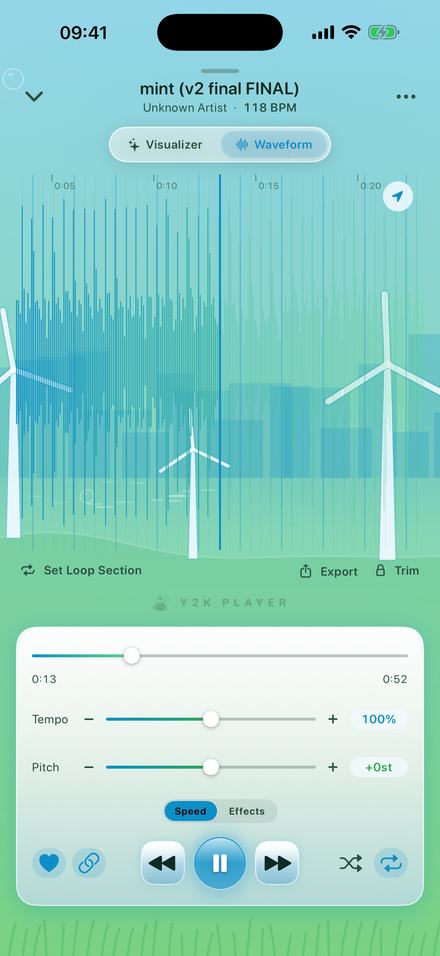
The player has two pages. The visualizer is the one it opens on; the waveform is the one with the tools.
The drawing is prepared at import rather than while you are looking at it: the file is read once and reduced to the loudest sample in each block of 256, then halved repeatedly until the coarsest version fits a whole song across the screen. Zooming picks whichever level suits the magnification, so dragging a five-minute track around stays smooth.
Pinch zooms, a drag pans, a tap anywhere seeks. On a track longer than 25 seconds the page opens on roughly a twenty-second window around the playhead rather than the whole song. A small arrow toggles follow, which pins the playhead to the middle and slides the waveform underneath it.
Two grids sit on top. The ruler is printed in the time you are actually hearing, so at 80% a spot one minute into the file carries the minute and a quarter it will take to arrive. Behind the waveform is a grid drawn from the song’s detected tempo — the BPM printed under the title — with a heavier line every fourth beat for the bar, placed from the first downbeat rather than from 0:00, which is the only reason it is worth having.
Setting one up
About a minute, most of it spent dragging two handles onto the bar lines.
- Open the waveformThe player has two pages. Tap Waveform in the switcher above the artwork and the whole track is drawn out, with the detected BPM printed under the title.
- Find the passagePinch to zoom, drag to pan, tap anywhere to jump there. Anything longer than 25 seconds opens on about a twenty-second window rather than the whole song.
- Drop the loopTap Set Loop Section. A band runs eight seconds forward from the playhead — less if the track ends sooner — and the region starts repeating. Both edges are handles; drag them onto the bar lines.
- Switch it off, not awayThe button now reads Loop On. Tapping it stops the repeat and leaves the band where it is, so you can hear the passage in context and go straight back. Clear is what deletes it.
- Trim the endsTap Trim to unlock the two outer handles, then drag them to where the track should start and stop. While they are unlocked, playback wraps inside the cut so you can hear the edit.
- Export what is leftExport writes the trimmed range as an M4A or a WAV with the tempo, the pitch and any effects rendered in. The video door renders the same range as an MP4.
What happens at the joint
This decides whether a loop is usable or maddening, and it is the one part no screenshot can show you.
The obvious way to repeat a region is to notice you have reached the end and jump back. That is where the tick comes from: the jump is decided after the audio has run out, and the waveform is almost never at zero on both sides of the cut.
Instead the app builds a short piece of audio for the joint before it is needed — the last twelve milliseconds of the region mixed into its first twelve on an equal-power curve, one rising as the other falls, so the two sum without the dip a straight fade leaves in the middle. Playback runs to twelve milliseconds short of the end, plays that piece, and carries on from inside the start. There is no jump to make: the next cycle was scheduled while this one was still playing.
Two cycles stay queued at all times, so a visualizer frame or a redrawing list cannot starve the player at the joint.
Very short regions get the fade narrowed to an eighth of their own length so they stay on the same path. Below about four fade widths there is nothing left to crossfade, and the loop falls back to the plain jump.
Why the trim handles are locked
Because a start point nudged by accident is worse than a button you have to tap first.
The two outer handles do nothing until you tap Trim. Locked, the boundaries are still drawn — a faint vertical at each end, everything past them shaded down — so the cut stays legible without being draggable. Unlocked, they become full-height grips; the loop’s handles are deliberately shorter and sit inside them, so the two pairs never fight over the same finger.
While they are unlocked, playback stops running off the end into the next song and wraps around inside the cut instead. That is the audition: unlock, hear the edit repeat a few times, move a handle, lock it again.
Getting back to no trim is a drag rather than a button. Pull the end handle to within a twentieth of a second of the real end and the trim is removed rather than set a hair short of the whole file. The loop is kept inside the trim automatically, and neither pair of handles can be pushed closer together than a tenth of a second.
The trim is in the file. The loop is not.
One of the two survives the export, and knowing which saves an argument with the app.
Export renders the trimmed range through the same chain you were listening to, offline and faster than real time, with the tempo, the pitch and any effects rendered in rather than stored as instructions. Audio comes out as M4A or WAV, the M4A at 128, 256 or 320 kbps. There is no MP3 option, and that is a platform limit rather than a decision — iOS decodes MP3 and ships no encoder for it.
The loop plays no part in it, because a loop is a playback fence: the export writes the range once and stops. If you want a file of the section itself, put the trim around it instead. The trim decides what gets written; the loop decides what you hear while you are deciding.
Worth knowing before you start: a free audio export writes the song’s first thirty seconds of listening time, counted from the beginning of the song rather than from wherever the trim starts. Video export is a separate door, full length on both tiers, with a small corner mark on the free one.
The rest of it, plainly
- Both tools are free. The loop, the trim, the waveform and its zoom are not part of Pro.
- It saves itself, per song. A week later the loop is still around the same bars at the same tempo. Nothing to name, nothing to reopen.
- Original does not clear them. That button restores the tempo, the pitch and the effects; the loop has its own Clear, and the trim goes when you drag the handles back out.
- The imported file is only ever read. A trim is a pair of numbers stored beside the song, never a cut made in the audio.
- One region at a time. A song holds a single loop; setting a new one moves the one already there.
- It has to be a file you own. Music held inside a streaming service cannot be imported by this or any other app; a purchase, a download or a bounce can.
Questions about looping and trimming
The ones that decide whether this does what you need.
How do I loop part of a song on my iPhone?
Open the Waveform page in the player, put the playhead near the passage and tap Set Loop Section. A band appears with a handle at each end; drag them onto the start and end you want. Playback then stays inside the band until you switch it off.
Can I loop a short section, like a single bar?
Yes. The two handles can sit a tenth of a second apart, so a bar at any tempo is comfortably inside the range. Regions that short get the crossfade narrowed to an eighth of their own length so they still join cleanly.
Does the loop click or pause when it comes round?
It should not. The last twelve milliseconds of the region are pre-mixed into the first twelve on an equal-power curve, and the next cycle is scheduled while the current one is still playing, so there is no gap left to hear.
Does trimming delete part of my file?
No. The start and the end are two numbers stored beside the song. The audio you imported is copied in once and then only read, so pulling the handles back out restores the whole track.
Will the trim be in the file I export?
Yes. The export renders the trimmed range with the tempo, the pitch and any effects rendered into it. A free audio export writes the song’s first thirty seconds of listening time, counted from the start of the song rather than from the trim.
Can I export just the looped section?
Not as a loop. The export writes the range once and stops, because looping is a playback tool. To get the section as a file, put the trim around it instead and export that.
Does it remember the loop for each song?
Yes. The loop, the trim, the tempo and the pitch are stored per song and saved as you go, so a track you set up today is still set up next week. There is nothing to name and no project to reopen.
Where to go next
- Slow a song downThe same loop with the tempo pulled down, for learning a passage.Open →
- How to make audios for editsChoosing the eight seconds an edit is actually built on.Open →
- Sped up songsWhat the ruler is counting once the tempo is not 100%.Open →
- Turn it into a videoThe other export door: the trimmed range as an MP4.Open →
- Export a Song as an Audio FileAudio export · iPhone & iPadOpen →
- Extract Audio From a Video on iPhoneAudio out of video · iPhone & iPadOpen →
- Loop a Section of a Song With No Click oLoops · iPhone & iPadOpen →
Fence it off. Then decide where the song starts.
Free to use. Pro is one payment — forever.
Free to download and keep. Pro is a one-time purchase — buy it once and it never renews.